Horbit Docs

The whole documentation as one document — 12 sections.

Back to docs

Horbit Docs

Product documentation

What Horbit is

A multi-tenant platform for running a membership organisation — members, events, email, certificates and the money around them.

Horbit runs the operational side of a membership organisation: who belongs to it, what it puts on, what it sends, and what it charges. Every workspace is a tenant with its own members, branding, domain and billing, and each tenant switches on only the parts it needs.

How the product is shaped

A tenant is the unit of isolation. Everything below — every member, event, campaign and certificate — belongs to exactly one tenant, and no query crosses that line. Inside a tenant, features arrive as modules that an administrator turns on or off.

Members

The register: profiles, membership status, dues and imports.

Affiliations

Institutions members belong to, deduplicated across the register.

Publications

Member scholarship, synced from external sources.

Events

Registration, ticketing, payment and attendance.

Communication

Email campaigns, the visual designer, audiences and delivery.

Contact

Segments and inbound requests.

Certificates

Designed, serialised, verifiable certificates.

Team

Administrators, roles and permissions.

Two ideas worth knowing first

Modules gate features, permissions gate people. Switching a module off hides it from the console, strips its permissions from the tenant's roles, and blocks its endpoints for that tenant. Permissions then decide which administrator may touch what remains. The two are independent: a module being on does not grant anyone access to it.

Members are the spine. Events, campaigns, certificates and segments all resolve back to member records. An email campaign's audience, an event's attendee list and a certificate's recipient are the same people seen from different angles — which is why a member's email address, affiliation and membership status turn up as merge tags, filters and columns throughout.

Reading this as a PDF

Every page here is also available as one continuous document. Open the printable version and use your browser's Save as PDF — the layout is built for paper, so nothing is cut off and the navigation chrome is dropped.
Getting started

What a new workspace looks like, and the order worth doing things in.

A new tenant starts with Events and Communication switched on; everything else is opt-in from Configuration. The console redirects to an onboarding wizard until the required steps are done.

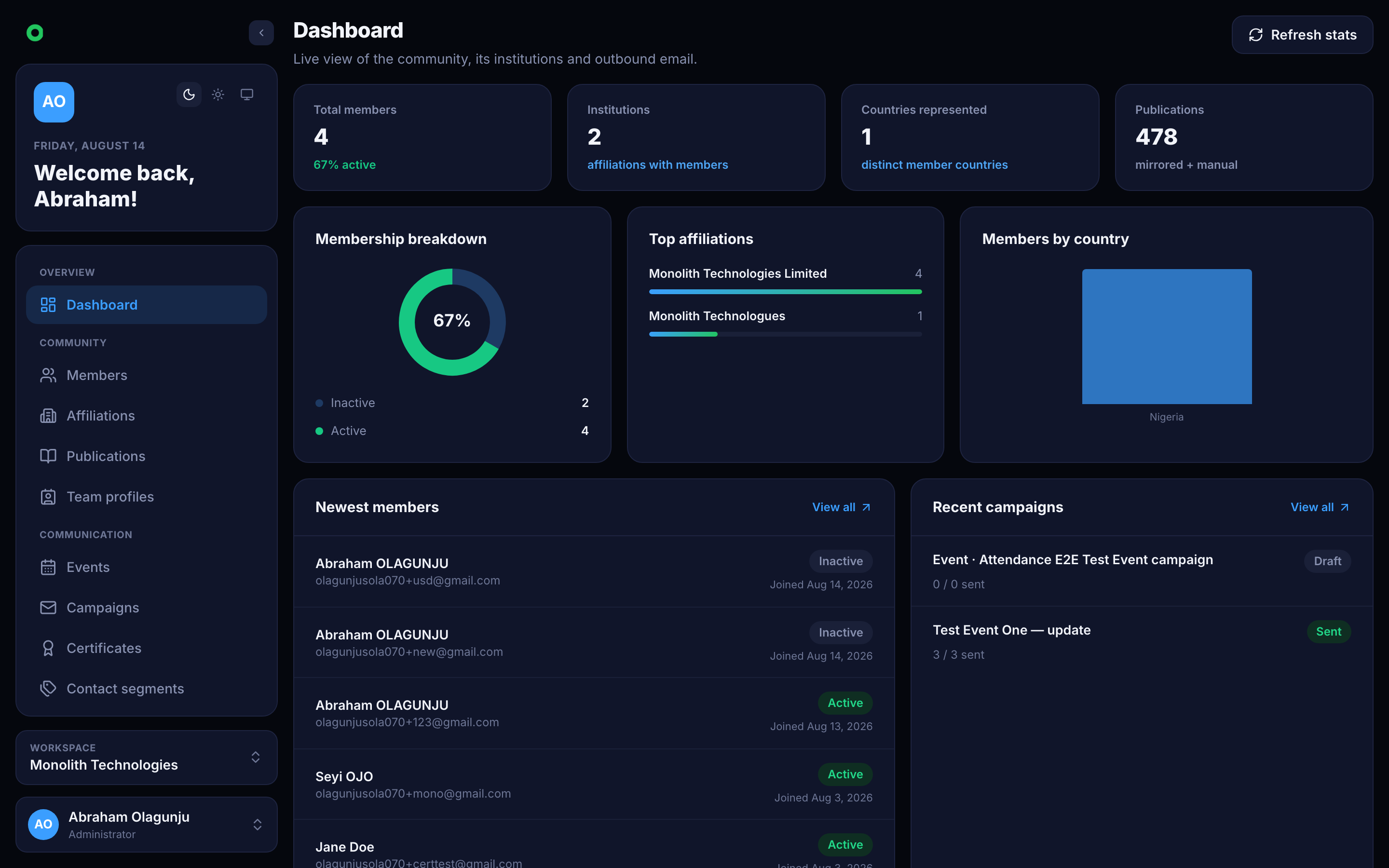
The console dashboard
The dashboard after sign-in — counts across whichever modules are enabled.

The order that saves rework

  1. Identity first. Set the organisation name, contact block and logo under Configuration → General and Branding. These flow into every email footer, public registration page and certificate, so setting them once beats editing them in three places later.
  2. Turn on the modules you will actually use. Each one adds navigation, permissions and endpoints. See Settings.
  3. Invite the team and shape roles before importing data, so the audit trail attributes work to real people. See Team.
  4. Bring in members. A CSV import is usually the fastest start, and it is the one step everything else depends on. See Members.
  5. Then run something — an event, a campaign, a certificate batch.

Sending email

Two things decide whether email leaves the building:

  • A transport. Either the tenant configures its own SMTP under Configuration → Communication, or sends through the platform's transport, which costs units from the unit wallet.
  • A from-address that survives authentication. A sending domain the tenant actually controls is the difference between the inbox and the spam folder.

Campaigns check the wallet balance before dispatch when the tenant has no SMTP of its own. A send is refused outright rather than half-delivered.

Members

The register — profiles, membership status, dues, imports and the fields every other module reads.

The member register is the record everything else points at. A member belongs to one tenant, carries a public member code, and holds the contact and membership details that campaigns, events and certificates read back.

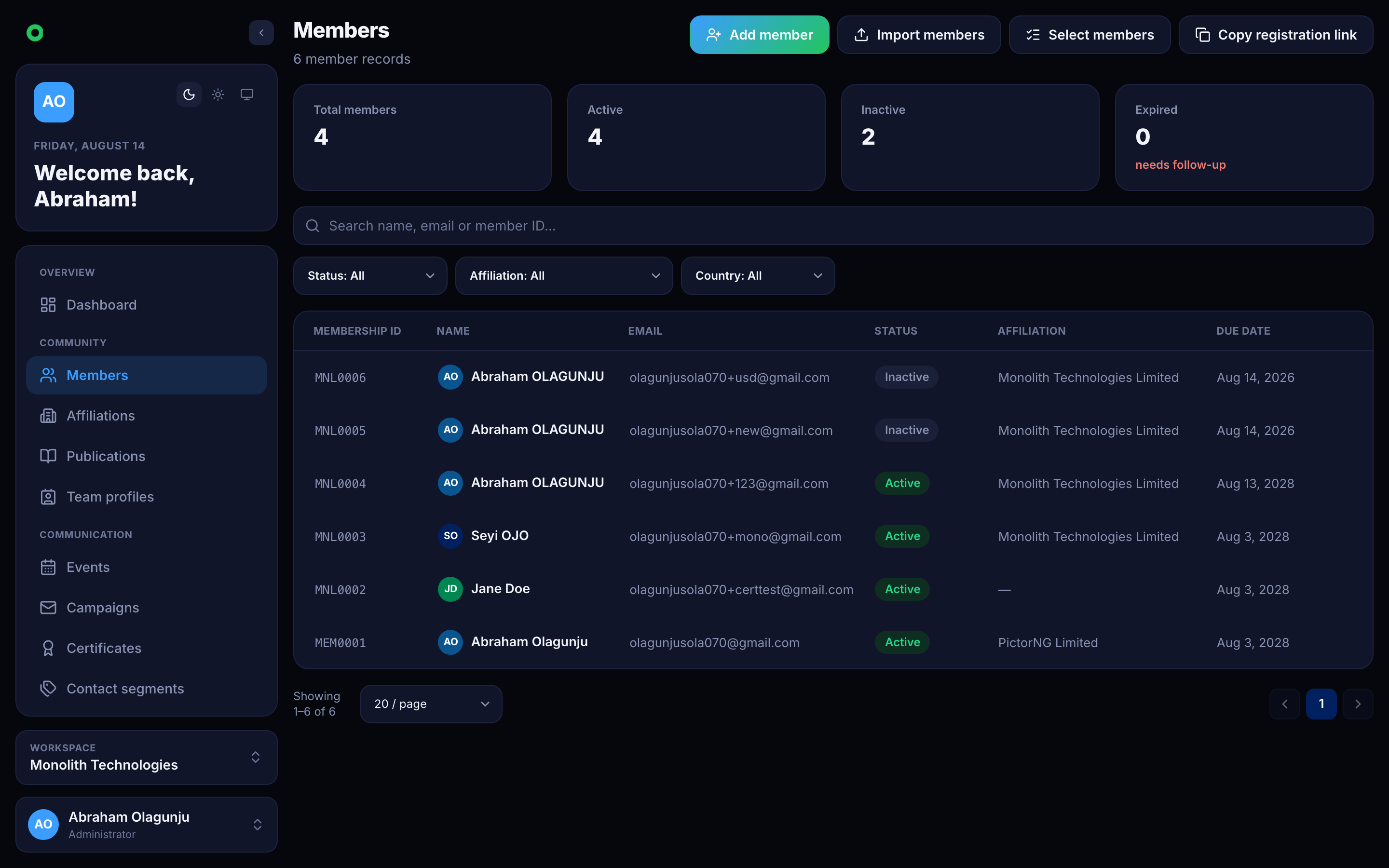
The members list
Searchable, filterable register with status and affiliation on each row.

What a member record holds

FieldNotes
memberIdPublic code, generated from the tenant's prefix (MEM0001). Unique within the tenant.
fullName, emailIdentity. Email is unique per tenant and is what campaigns and suppressions key on.
statusactive, inactive or expired — expiry is driven by the dues date, not set by hand.
membershipDueDateThe day the current term ends. A calendar date, anchored in UTC.
membershipTierIdWhich tier the member is on, when the tenant runs paid membership.
affiliationIdThe institution they belong to. See Affiliations.
ContactPhone, address, city, state, country.
orcidResearcher identifier, for tenants that publish scholarship.

Which optional fields appear — and which are required — is configurable per tenant, and the same setting drives both the console's own form and the public registration page.

Use cases

Running an annual membership

Tenants on paid membership put every member on a tier, each priced per currency. Invoices are raised for the term, and a member who opts out of billing is never invoiced and never lapses for non-payment. Paying advances membershipDueDate by one term; letting it pass moves the member to expired, which quietly removes them from any audience filtered on active.

Importing an existing register

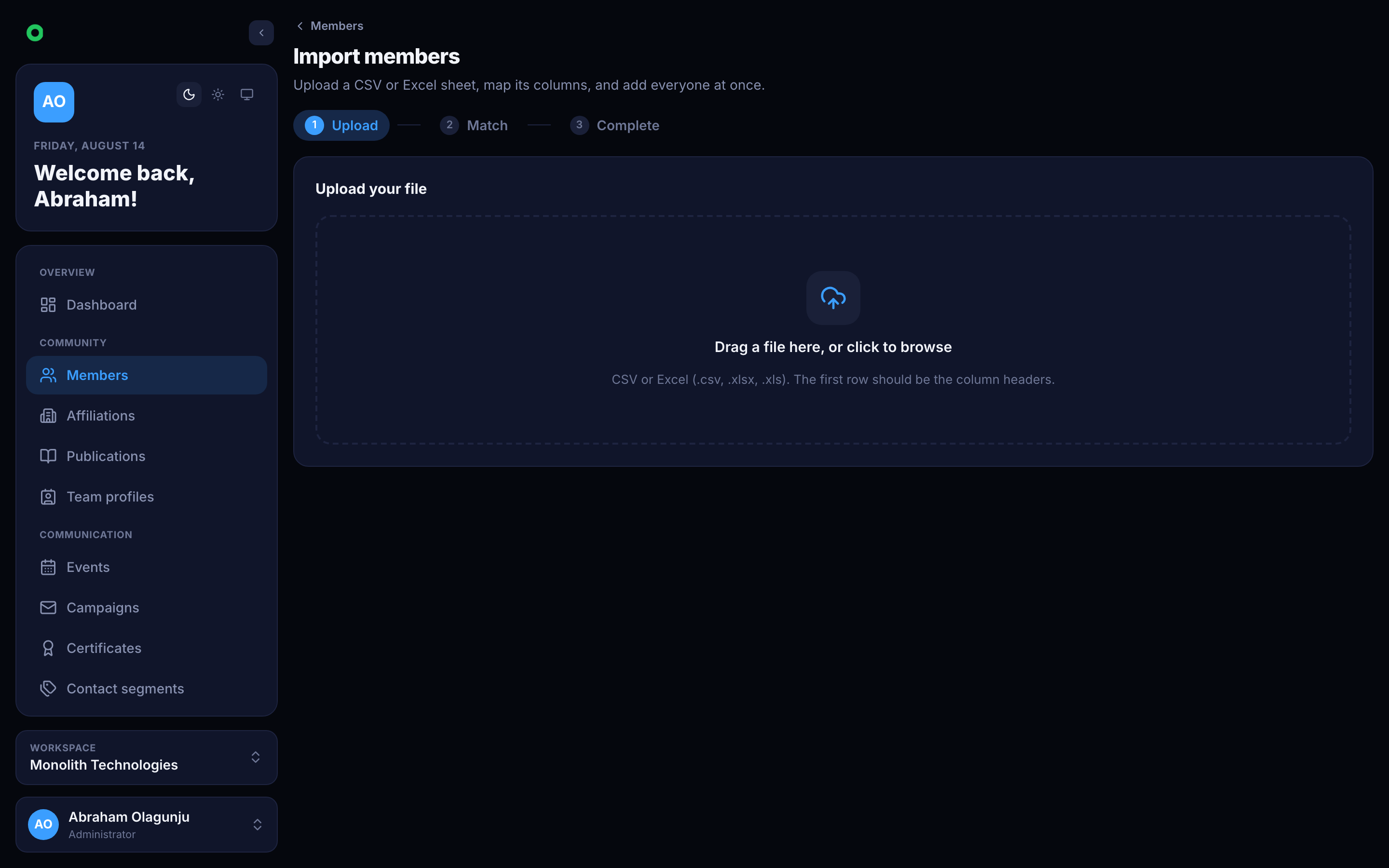
A CSV import is the usual first step for an organisation moving in. Rows are matched on email, so re-running an import updates rather than duplicates.

The member import screen
Column mapping and a dry run before anything is written.

Letting members register themselves

Each tenant has a public join page. Submissions land as members directly, with the tenant's own field configuration deciding what is asked and what is mandatory.

Why the register matters elsewhere

A member's affiliation, tier, status and dues date are all available as merge tags in email. Writing "your membership expires on 14 March 2027" needs no export, no spreadsheet and no mail merge outside the product.

Affiliations

The institutions members belong to, kept as one list rather than a free-text field repeated a thousand times.

An affiliation is an institution — a university, hospital, company or agency — that members belong to. It exists as its own record so that "University of Ibadan", "Univ. of Ibadan" and "UI" end up as one row rather than three.

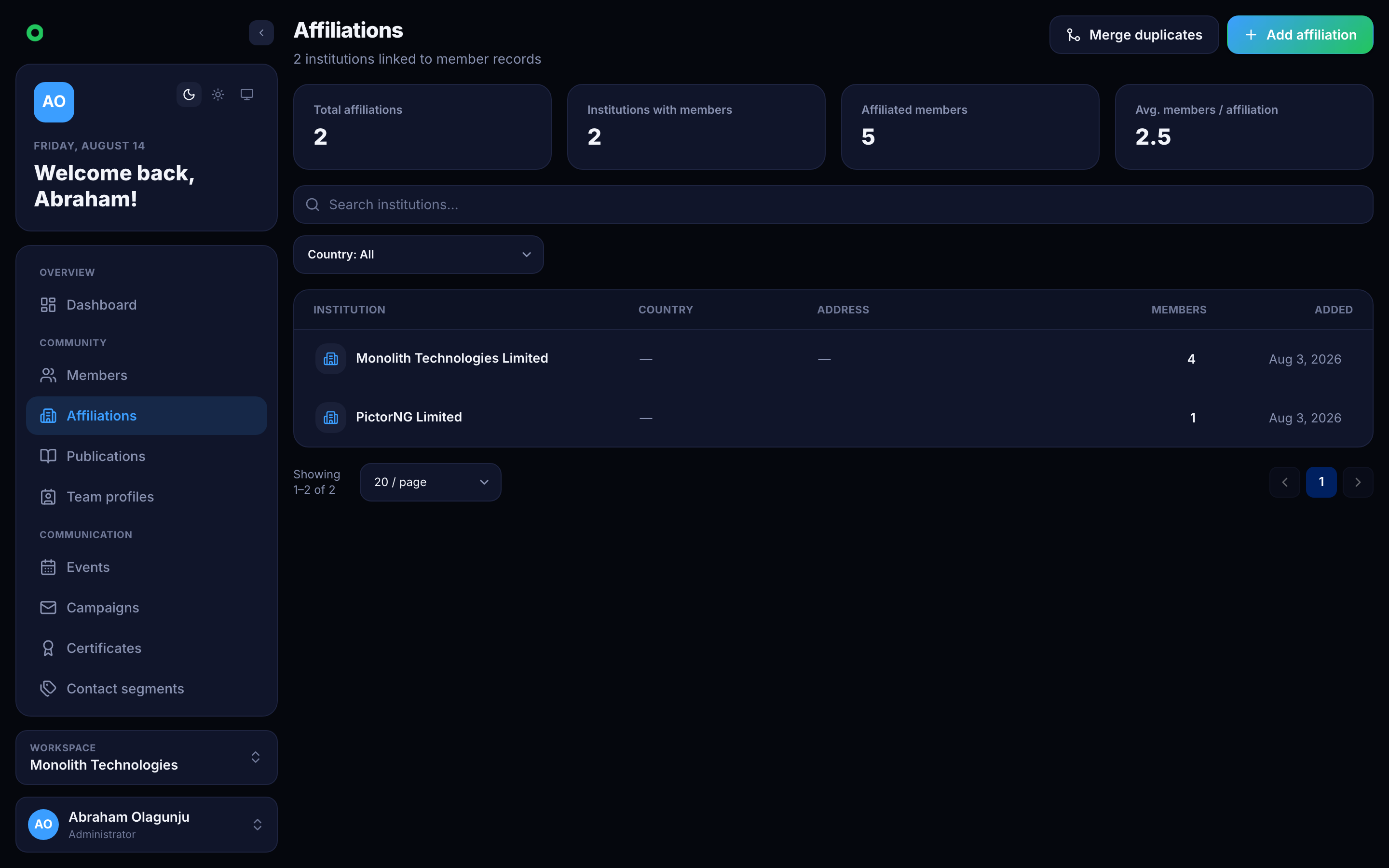
The affiliations list
Each affiliation carries its own address and country, and counts its members.

Why it is a record, not a text field

Free-text employer fields decay immediately: every misspelling becomes a separate group, and any report grouped by institution is wrong from day one. Horbit stores a normalised name alongside the display name and compares incoming values against it, so near-identical submissions land on the existing record instead of creating a new one.

Use cases

Cleaning up after an import

An import of several thousand members typically carries hundreds of spellings of a few dozen institutions. Near-duplicates are surfaced for merging: the surviving record keeps its name and address, and every member pointing at the merged record is repointed.

Targeting by institution

Because affiliation is a real reference, an email campaign can be filtered to one institution's members, and {{affiliation}} resolves per recipient in the body of the message.

Self-service registration

The public join page offers existing affiliations as you type and accepts a new one when nothing matches, so the list grows without an administrator gate while still avoiding duplicates.

Publications

Member scholarship, synced from Zenodo, AfricArXiv and ORCID, or entered by hand.

For research organisations, the publication record is part of the membership record. Horbit keeps a publication list per tenant, attributed to members, and keeps it current by syncing from external sources rather than asking anyone to retype citations.

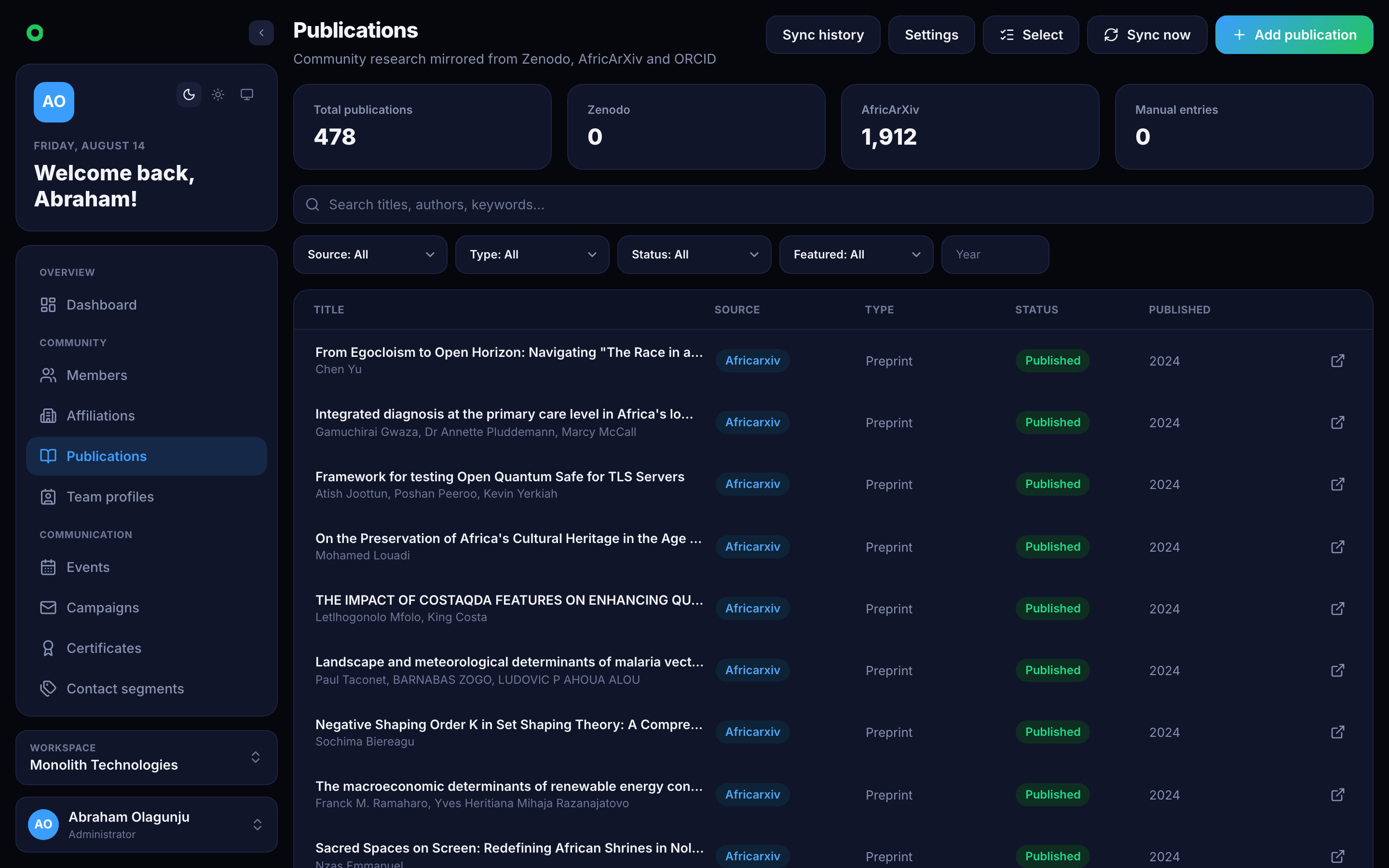
The publications list
Publications carry their source and can be hidden without being deleted.

Sources

SourceHow it arrives
zenodoSynced from Zenodo
africarxivSynced from AfricArXiv
orcidPulled against members' ORCID identifiers
manualEntered in the console

A publication is either published (visible) or hidden — hiding keeps the record and its sync history while taking it off public surfaces, which is the right move for a duplicate or a retracted item.

Sync runs

Syncing is a tracked job, not a fire-and-forget button. Each run records what it fetched and what changed, so an empty week is distinguishable from a broken credential.

Use cases

An annual report

The list is the raw material for a yearly output summary, already attributed to members and deduplicated across sources.

Keeping ORCID as the source of truth

Members who supply an ORCID identifier have their work picked up automatically — they maintain their record where they already maintain it, and the organisation's list follows.

Events

Registration, tiers and payment, sessions, check-in and attendance.

An event is anything the organisation puts on: a meetup, training, webinar or conference, held online, in person or hybrid. Each carries a stable public reference used in its registration link, so renaming the event never breaks a link already in circulation.

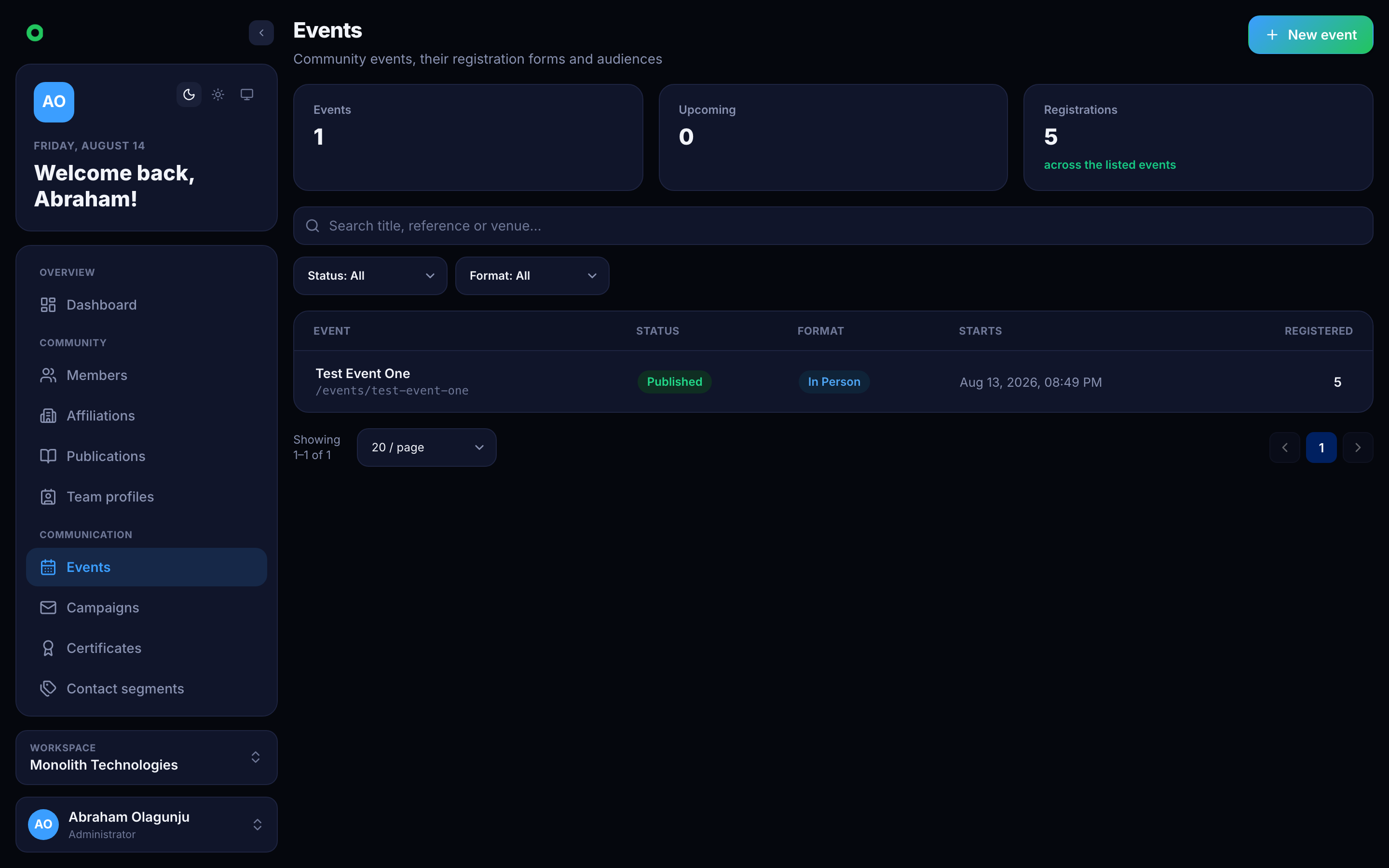
The events list
Events move draft → published → completed, or are cancelled.

The shape of an event

  • Status — draft, published, cancelled or completed. Only a published event accepts registrations.
  • Format — online, in-person or hybrid, which decides whether a venue, a meeting link, or both are shown.
  • Tiers — named admission types, each priced per currency. Free events skip them entirely.
  • Sessions — a conference splits into sessions, each with its own window, so attendance is recorded per session rather than per event.
  • Registration fields — extra questions asked at sign-up, defined per event.

Use cases

A free community meetup

Publish the event, share the registration link, and let people sign up. A registration is registered immediately since payment is not-required. On the day, check people in from the attendance screen.

A paid conference with tiers

Add tiers (Early bird, Standard, Student), each with prices in the currencies the tenant has enabled. Registration is held at pending until payment reports paid — an unpaid registration never counts toward capacity.

Registering people who signed up elsewhere

Registrations import from CSV the same way members do, so a list collected on another platform still lands in the attendance flow.

Check-in on the day

Attendance is recorded per session and per method, so a hybrid conference can distinguish someone who walked into the room from someone who joined the stream. Each check-in is stamped with a time.

Registrations and members are related, not identical

A registration captures a name, email and affiliation as typed on the day. When it matches a member it links to that record; when it does not, the registration still stands on its own. That is deliberate — a public event should not require membership, and cleaning strangers into the register is a separate decision.

Communication

Email campaigns — the visual designer, merge tags, audiences, delivery and the shared footer.

Communication covers everything the organisation sends by email: campaigns written in a visual designer, addressed to an audience resolved from the member register, dispatched in paced batches with a per-recipient delivery log.

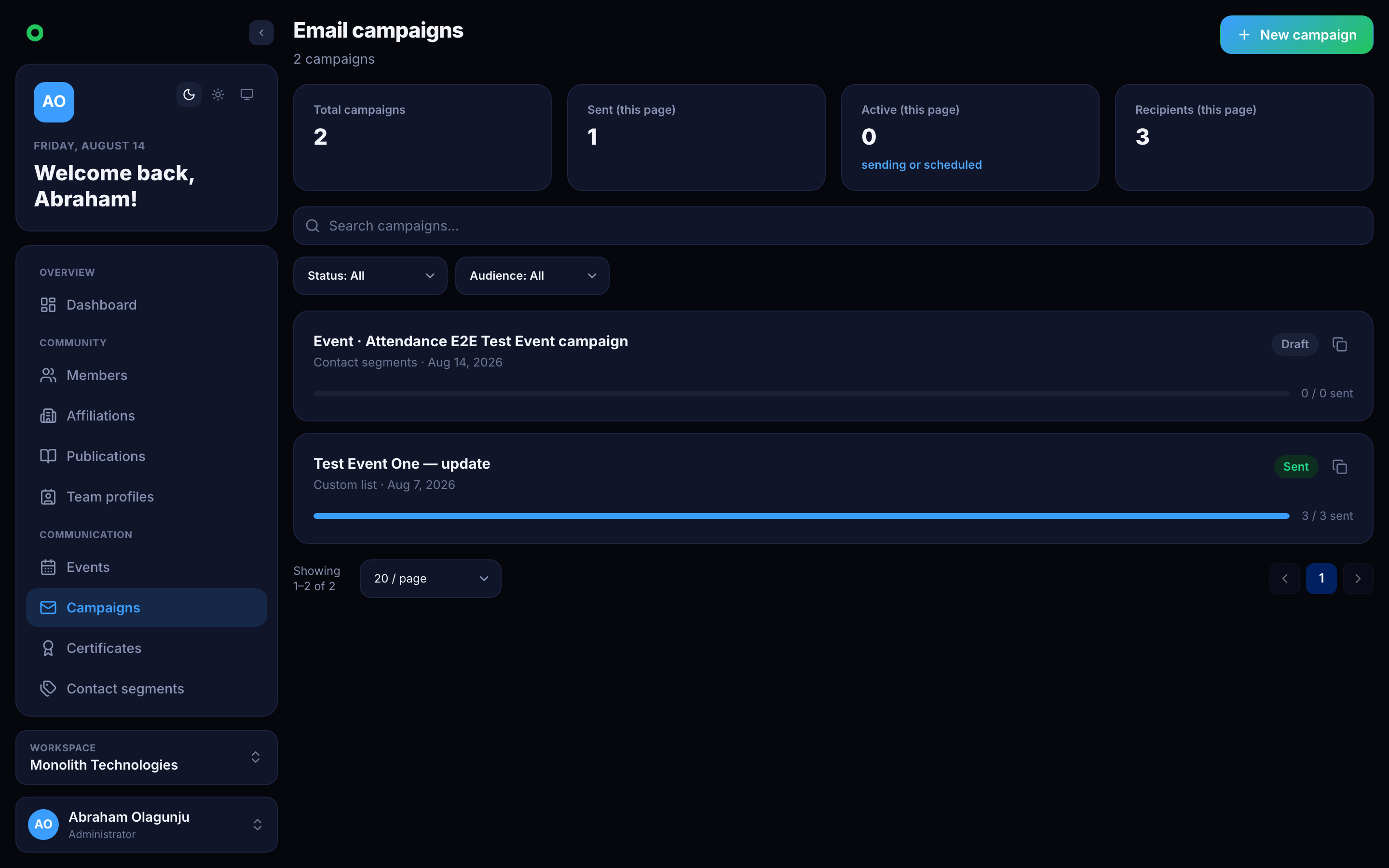
The campaigns list
Campaigns carry their own status and delivery counts.

A campaign's life

A campaign starts as a draft and moves through scheduled, sending, and then sent, partial or failed. A draft can be edited, duplicated, scheduled, cancelled or deleted; once it is sending, its content is fixed.

The audience is resolved at send time, not at edit time — so a member who joins between scheduling and sending is included.

Composing

The Compose tab holds the internal title, subject line, inbox preheader, heading and attachments, with a live preview of the real compiled email beside it. The preview is rendered by the server, not approximated in the browser, so what is on screen is what leaves the building.

The visual designer

The body is built in a full-screen designer: a palette of elements on the left, the email in the middle, and an attribute editor on the right.

  • Elements — image, text, button, heading, divider, social, spacer and a raw HTML block. Drag one onto the canvas or click to append it.
  • Layouts — one to four columns, including 1/3 : 2/3 splits. Columns hold their own blocks.
  • Typing in place — headings, button labels and text blocks are edited directly on the canvas, with the formatting bar appearing above the words.
  • Attributes — every element has its own settings, including colours that override the design palette for that element alone. Left alone, an element follows the design.
  • Saved swatches — a colour saved to the palette is available in every colour field, in this campaign and the next.

Merge tags

Merge tags resolve per recipient from the member record behind the address. A tag with nothing behind it resolves to nothing rather than printing itself.

GroupTags
Identity{{firstName}}, {{lastName}}, {{fullName}}, {{email}}, {{memberId}}
Membership{{affiliation}}, {{membershipStatus}}, {{membershipTier}}, {{membershipExpiry}}, {{memberSince}}
Contact{{phone}}, {{city}}, {{state}}, {{countryCode}}
Links{{unsubscribeUrl}}, {{button:Label|https://url}}

Write around empty values. "Hi {{firstName}}" is safe; "Your {{membershipTier}} membership" reads oddly for a recipient with no tier.

The shared footer

The footer under every email — logo, contact block, social links, unsubscribe line — belongs to the tenant, not the campaign. It is previewed under the canvas and edited from there, and a change applies to every campaign and every transactional email at once. It supports several addresses and several phone numbers.

Audiences

ModeWho it resolves to
All membersEvery member with an active membership
FilteredMembers matching status, country, affiliation or a search term
Contact segmentsEveryone in the selected segments, deduplicated
Custom listExplicit addresses, matched against the register where possible

Whatever the mode, addresses are deduplicated, invalid ones are rejected, and anyone on the do-not-email list is suppressed before a message is sent.

Delivery

Dispatch writes a recipient row before any mail leaves, then sends in batches whose size and spacing the tenant configures. Each row records its status, attempts, send time and failure reason, so a partial send can be retried without re-sending to anyone already delivered to. Permanently rejected addresses are added to the do-not-email list automatically.

Test sends

A test send prefixes the subject with [TEST] and fills merge tags with obviously fake sample data, so a placeholder left in by mistake reads as one.

Contact

Segments for grouping people, and the inbound requests arriving from public pages.

Contact covers two related things: segments, which group members for targeting, and contact requests, which arrive from the organisation's public pages.

Segments

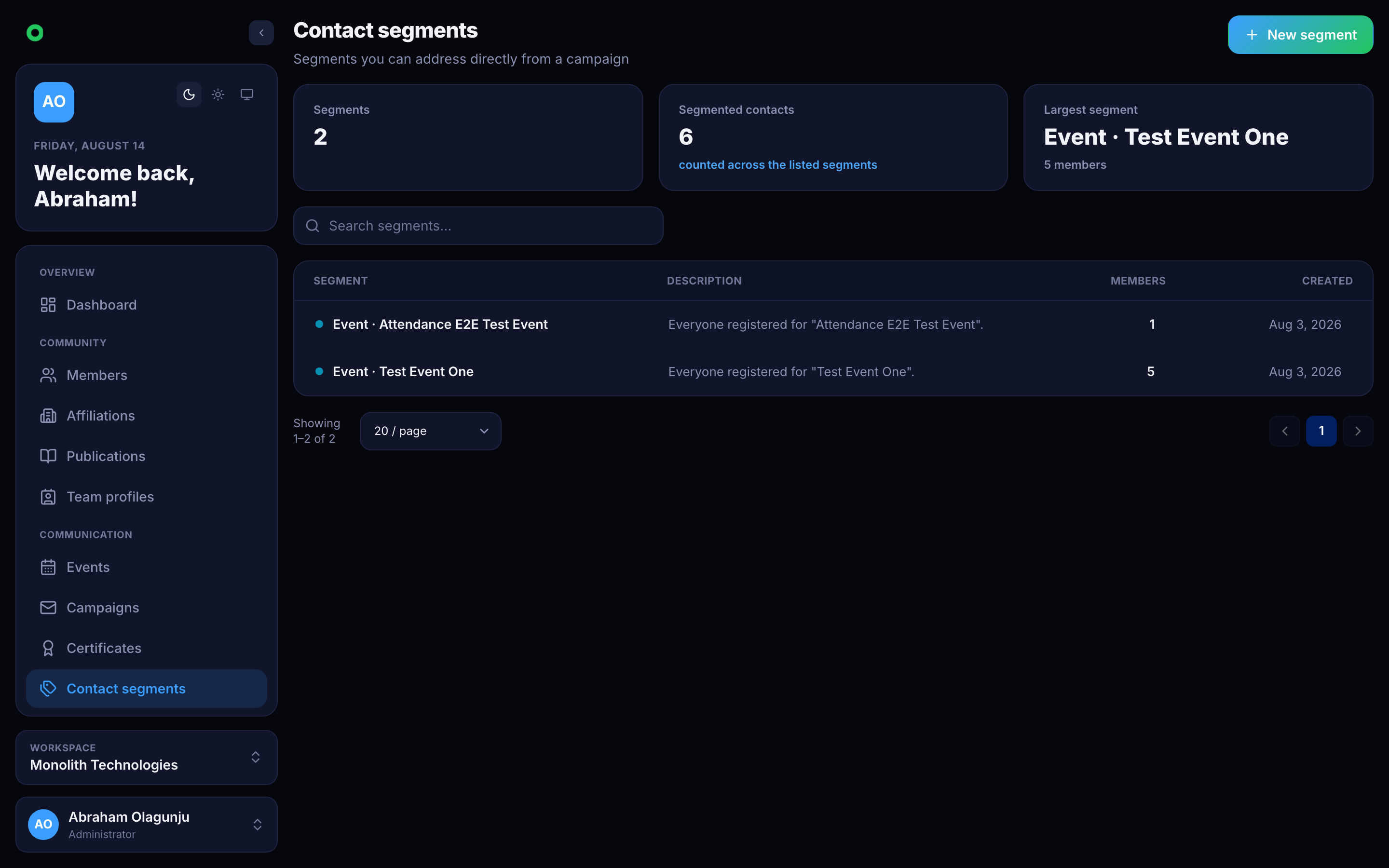
A segment is a named, coloured group of members. Membership is explicit, so a segment survives changes to a member's status or affiliation — useful for the groupings a filter cannot express: a committee, a cohort, past speakers.

Contact segments
Each segment carries a colour and a member count.

Segments are a first-class campaign audience. Selecting several mails everyone across them once — a member in three segments receives one email, not three.

Contact requests

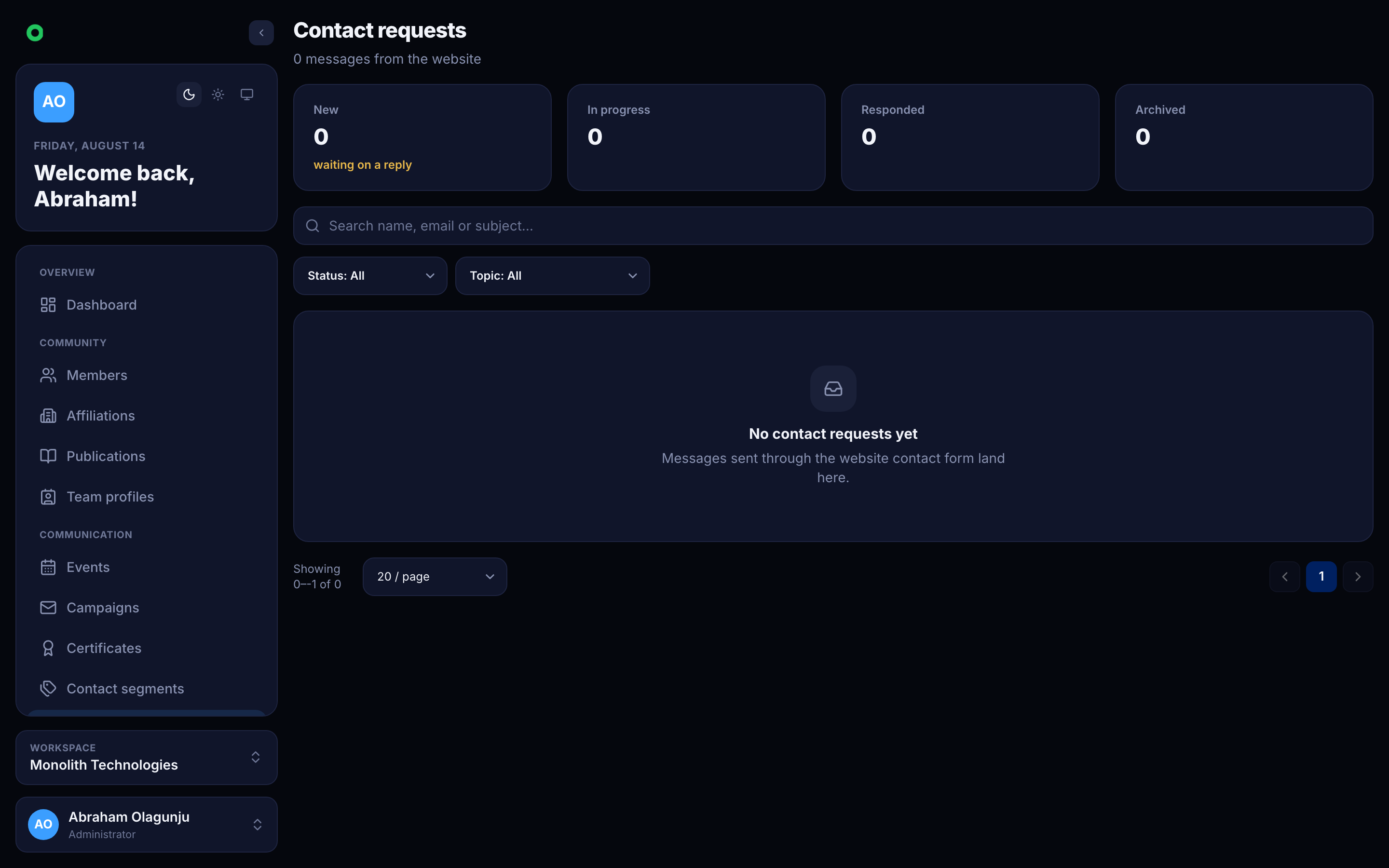
Enquiries submitted from public pages land here rather than in an inbox, so they carry a status and are visible to the whole team.

Contact requests
Inbound enquiries, tracked to resolution.

Use cases

A committee mailing list that stays correct

Put the committee in a segment. Membership does not drift when someone's dues lapse or their affiliation changes, and the list is visible to every administrator rather than living in one person's mail client.

Suppression is separate

Someone unsubscribing is recorded on the do-not-email list, which is checked at send time regardless of segment or audience. Removing a person from a segment is a targeting decision; suppression is a consent decision, and the two never overwrite each other.

Certificates

Designed templates, serialised issuance, PDF delivery and verification.

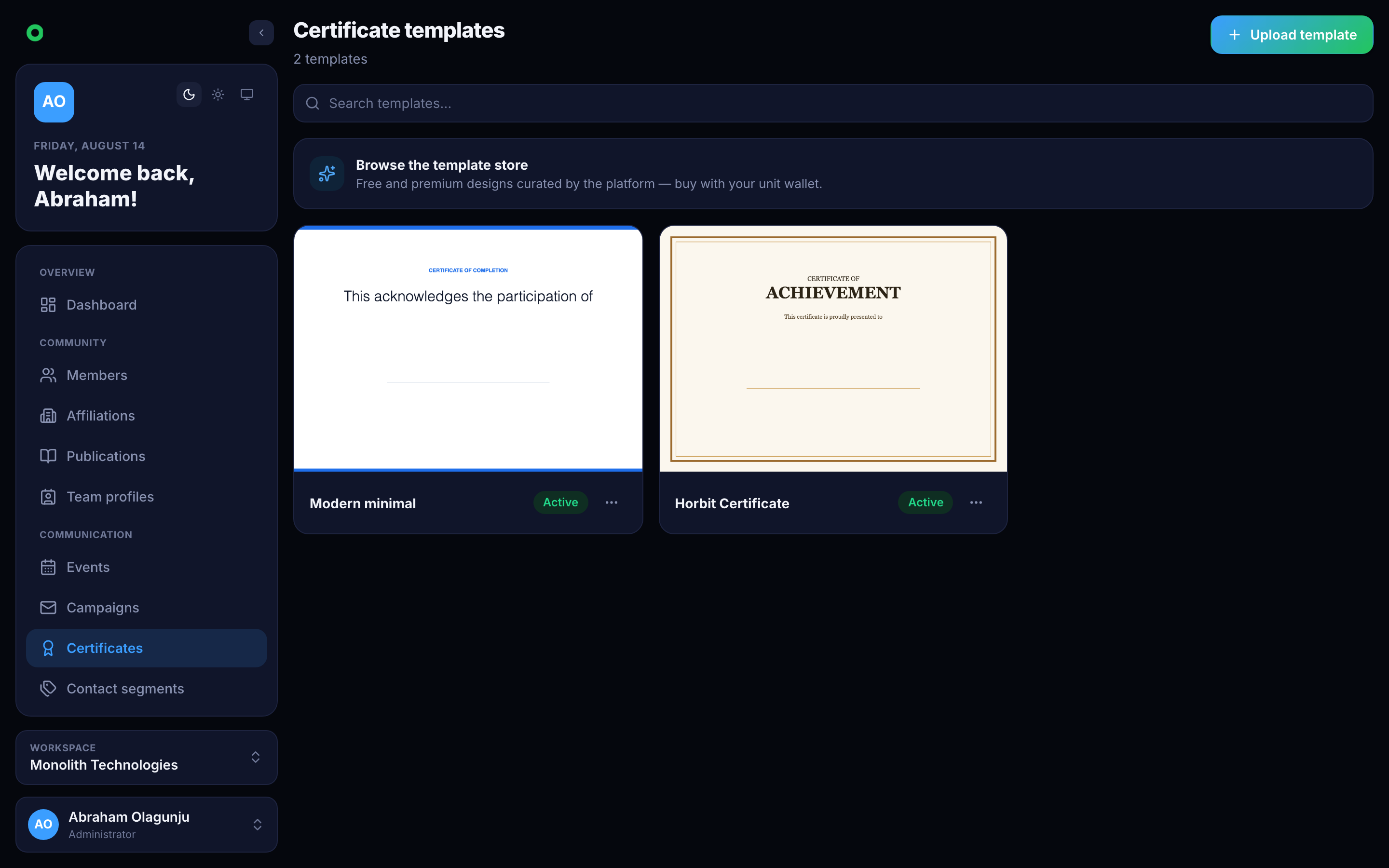
Certificates turn attendance or achievement into a document the recipient can keep and a third party can check. A template is designed once, then issued in batches against an event's attendees.

Certificate templates
Templates are designed in the console and reused across issuances.

How it fits together

  1. A template — the visual design, with placeholders for the recipient's name, the event, the date and the serial.
  2. An issuance — one batch, usually tied to an event. It records who was included and when it ran.
  3. A certificate — one row per recipient, carrying a serial number unique within the tenant, a snapshot of the recipient's name and email at the time of issue, and a PDF.

The snapshot matters: a certificate issued in March still reads correctly after the recipient changes their name or email in June. The document is a record of what was true when it was awarded.

Use cases

Certifying a training cohort

Run an issuance against the event's attendance list. Everyone who actually checked in gets a serialised certificate; nobody has to be typed in.

Verifying one later

Serials are unique per tenant and resolvable, so an employer holding a PDF can confirm it was really issued rather than trusting the artwork.

Starting from a ready-made design

The platform keeps a store of certificate templates a tenant can adopt and re-brand, rather than starting from an empty canvas.

Team

Administrators, roles and the permissions that decide who can do what.

The team is the set of people who administer the workspace. Each holds an access into the tenant, and that access carries a role, which is a named bundle of permissions.

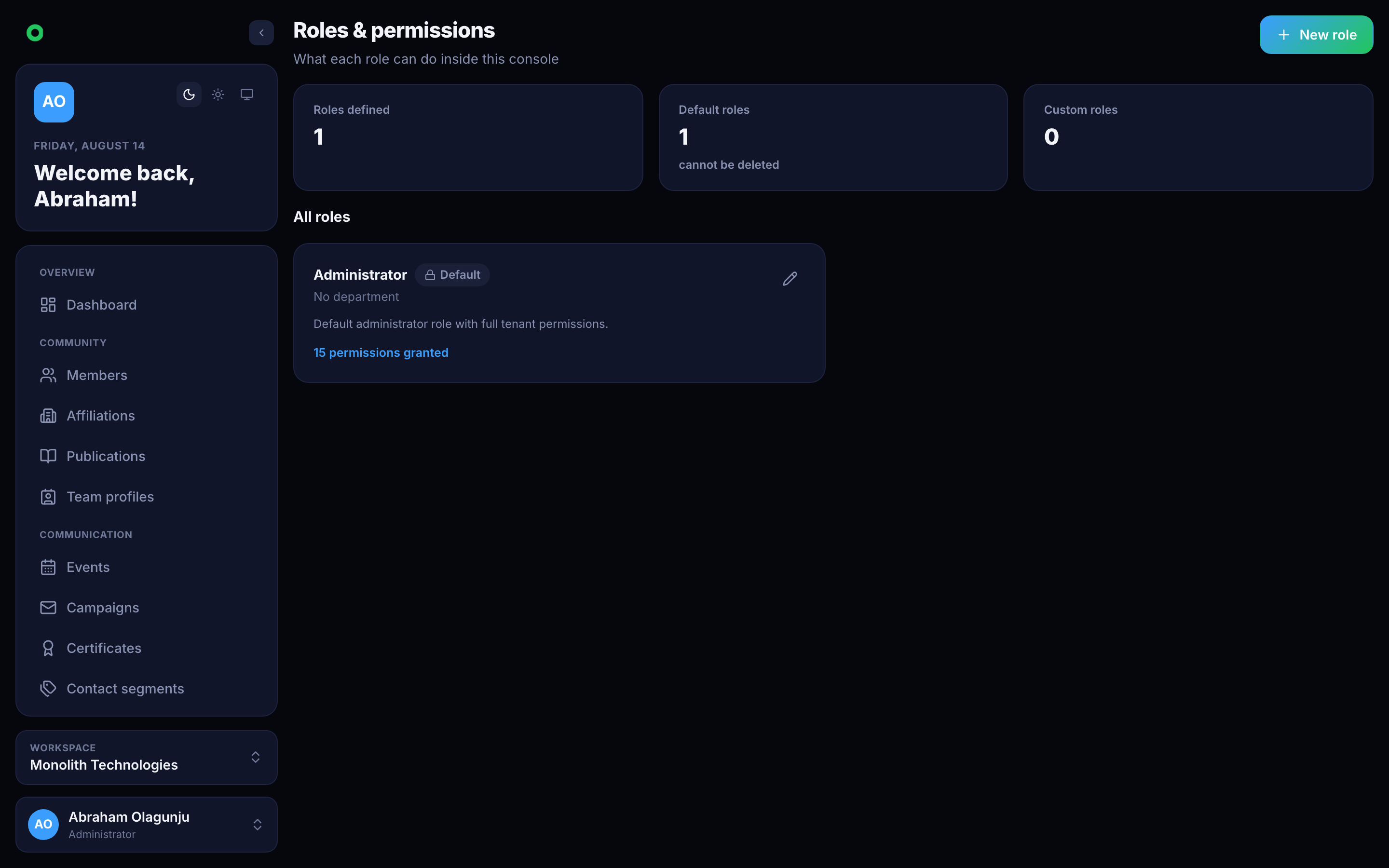
Roles and permissions
Roles are edited per tenant; each is a set of permissions.

Permissions

PermissionGrants
member:manageThe member register
affiliation:manageInstitutions
communication:manageCampaigns and events
publication:manage, publication:syncPublications and their syncing
contact:manageSegments and contact requests
certificate:manageTemplates and issuance
team-member:create, team-member:updateInviting and editing administrators
role-permission:create, role-permission:updateEditing roles themselves
tenant:manageTenant identity, branding, profile
smtp:manage, api-key:manage, wallet:manageSending, integrations, billing
stats:viewDashboard figures
settings:updateConfiguration

Events and campaigns deliberately share communication:manage rather than having separate permissions.

Modules and permissions are different gates

Turning a module off strips its permissions from the tenant's roles and blocks its endpoints. Turning it back on does not restore anyone's access automatically — roles are edited deliberately. A permission survives while any still-enabled module needs it, so switching off Events does not remove communication:manage from someone who also runs campaigns.

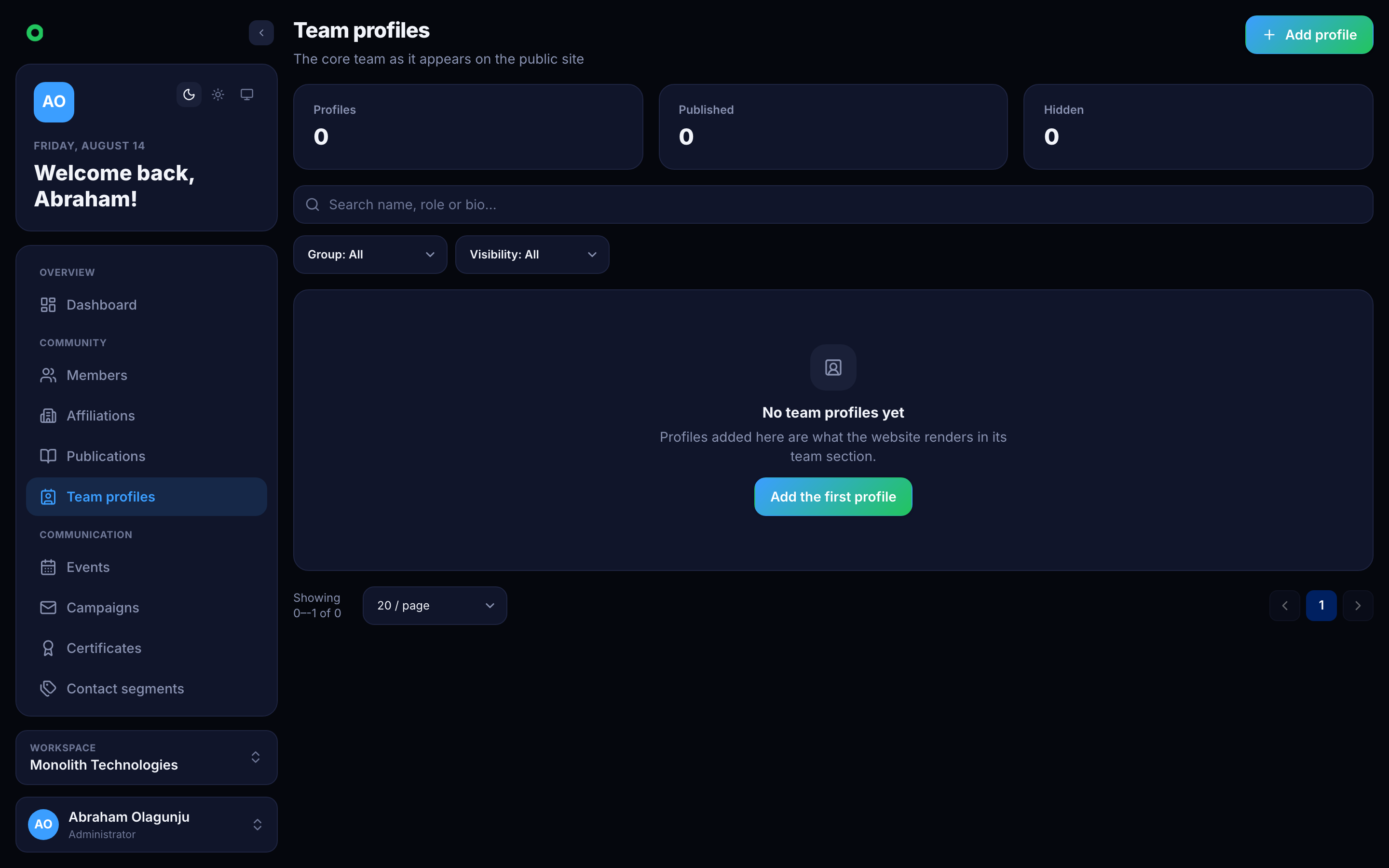
Team profiles

Separate from administrators, team profiles are the public-facing people page: the board, the secretariat, the organising committee. They are content, not access — a profile grants nothing.

Team profiles
Public profiles, independent of who can sign in.

Use cases

A volunteer who only sends email

Create a role with communication:manage alone. They see Campaigns and Events and nothing else — not the register, not billing.

Handing over the treasurer's job

Grant wallet:manage to the incoming treasurer, remove it from the outgoing one. Access is per person, so nothing is shared and nothing needs a password change.

Billing & the unit wallet

What costs units, how the wallet is topped up, and how members' own payments flow.

Two separate money flows run through a tenant, and keeping them apart avoids most of the confusion:

  • The unit wallet — what the tenant pays the platform for metered actions, chiefly sending email through the platform's own transport.
  • Member and attendee payments — what people pay the tenant for membership dues and paid events.
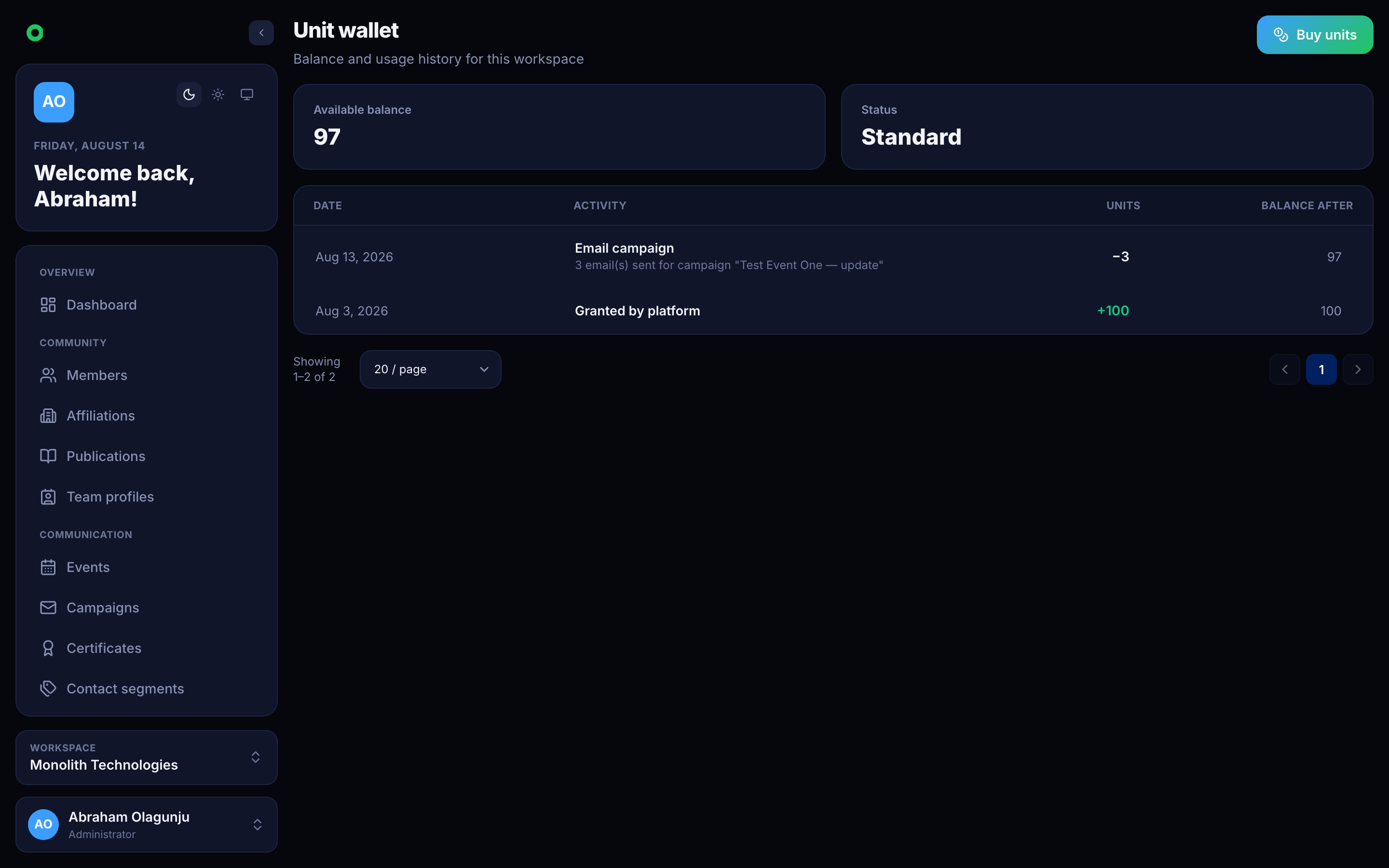
The unit wallet
Balance, top-ups and the ledger of what consumed units.

The unit wallet

Sending email through the platform's shared transport costs units per email. Before a campaign dispatches, the balance is checked against the number of pending recipients — an underfunded send is refused up front rather than stopping halfway through.

Bringing your own SMTP

A tenant that configures its own SMTP under Configuration → Communication sends through that transport instead, and those sends cost no units. The wallet check is skipped entirely.

Member and attendee payments

Tenants collect through their own payment configuration, so money reaches the organisation's account rather than the platform's. Paid events hold a registration at pending until payment reports paid; membership invoices advance the member's dues date when settled.

Use cases

Budgeting a newsletter

A monthly newsletter to 4,000 members is 4,000 units. Top up ahead of the send, or move to your own SMTP if volume makes that cheaper.

Charging for a conference in two currencies

Price each tier per currency across the currencies the tenant has enabled; attendees pay in theirs.

Settings & configuration

Identity, branding, modules, sending, storage, membership and domains.

Configuration is per tenant. Nothing here leaks between workspaces, and most of it is read by several modules at once — which is why it is worth setting early.

General

The organisation's description, website, contact email, address, phone, country and timezone. The address and phone are the first entries of lists that the email footer can extend, so a tenant with two offices shows both.

Branding

Logo, favicon, primary and accent colours, an optional email header, and the custom domain the white-labelled console is served on. Branding resolves by hostname: a request arriving on a tenant's own domain is themed as that tenant across both the console and its emails.

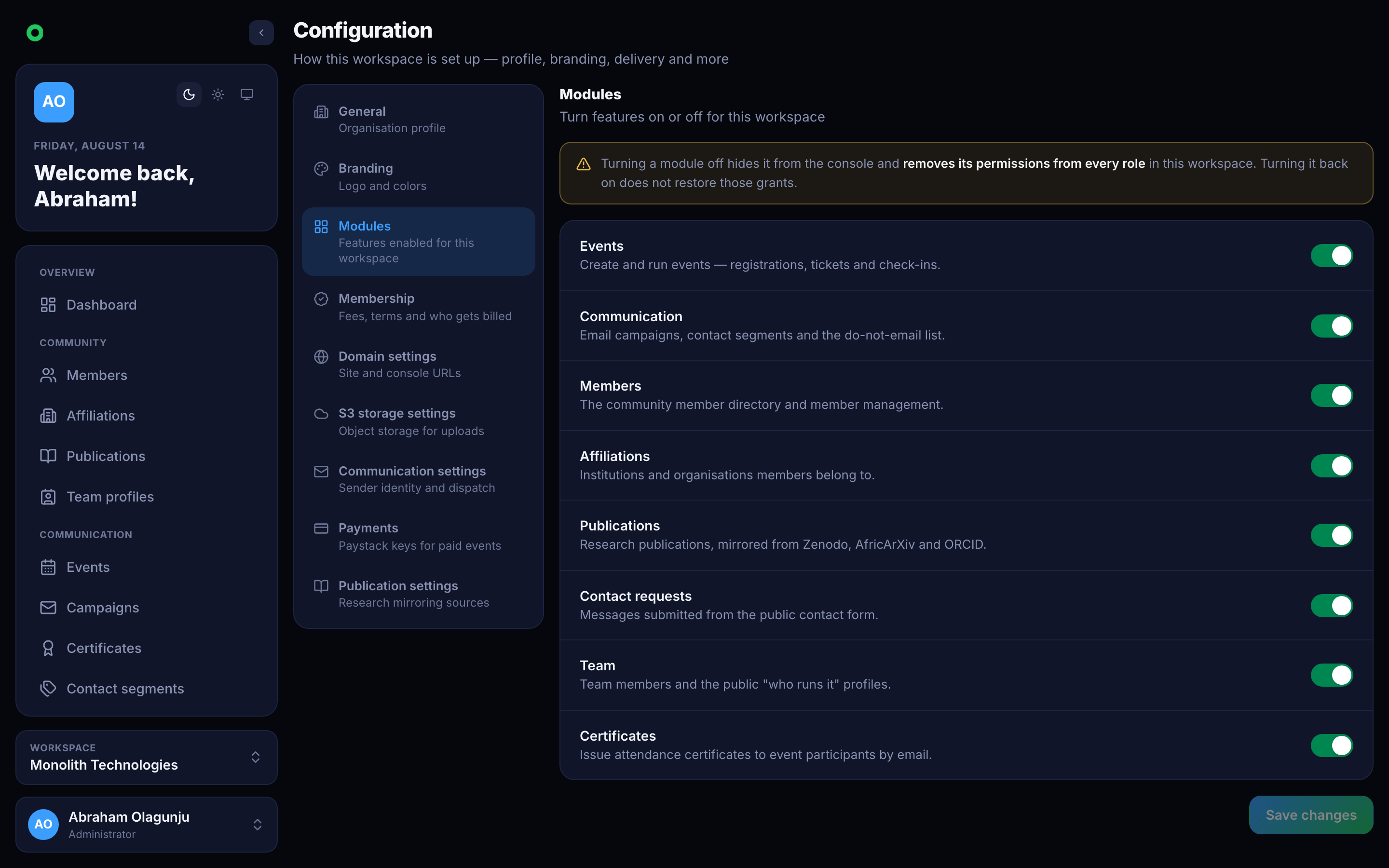
Modules

Module configuration
Each module can be switched on or off per tenant.

Every tenant starts with Events and Communication; the rest are opt-in. Switching one off hides it from the console, strips its permissions from the tenant's roles, and blocks its endpoints — see Team.

Communication

The from-name and from-address, an optional tenant SMTP transport, and campaign pacing — how many emails go out per batch and how long to wait between batches. Pacing exists to stay inside a provider's rate limits.

Membership

Whether paid membership is on, the term (weekly, monthly, yearly), the tiers and their prices, and the prefix for generated member codes.

Storage

Where uploads go: an S3-compatible bucket with its region, endpoint, credentials and optional custom domain. Images pasted into an email body are uploaded here first so the email carries a real URL rather than an attachment.

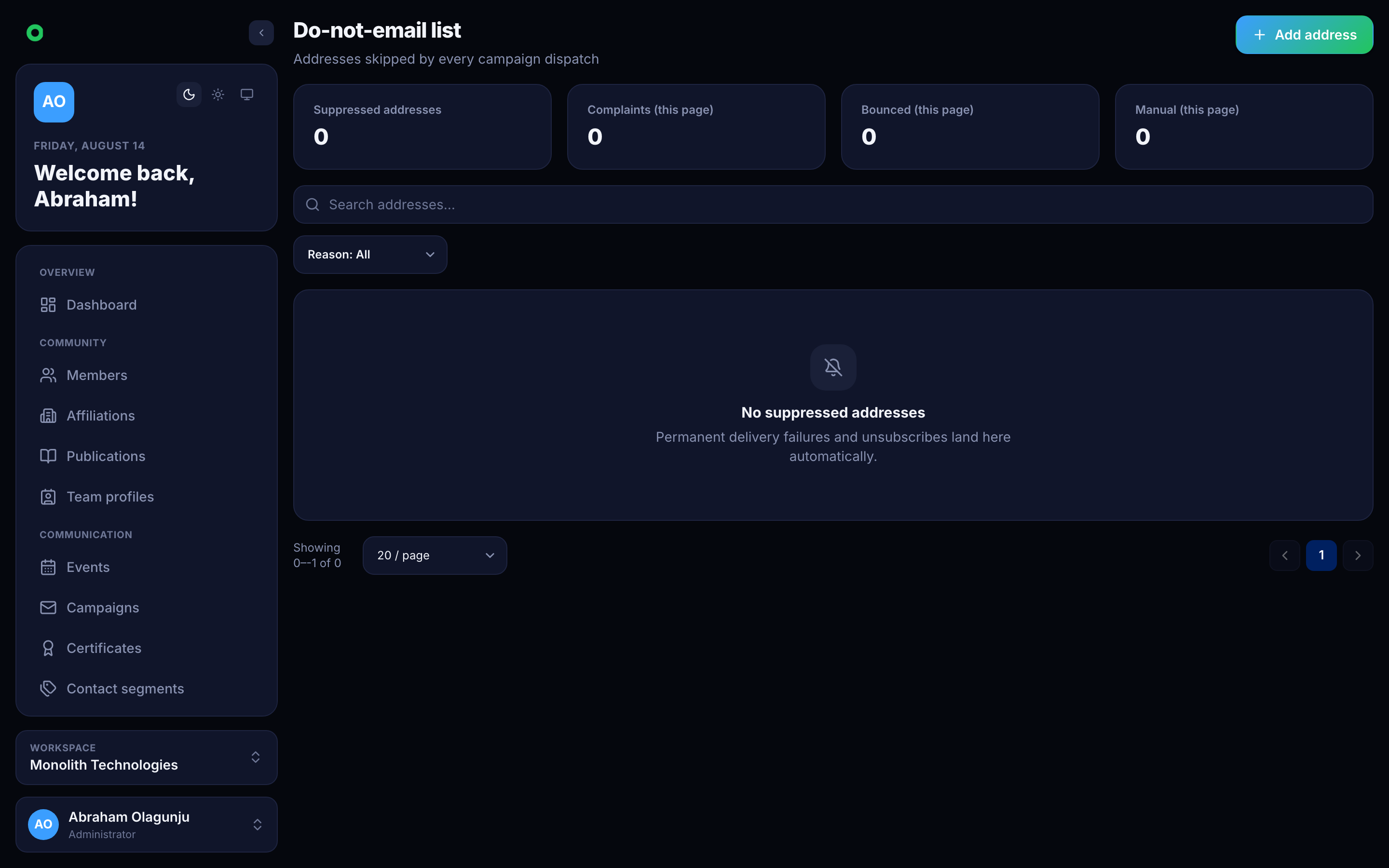
Do-not-email

The suppression list. Addresses land here from unsubscribes, hard bounces and invalid-address rejections, and are checked before every send.

The do-not-email list
Suppression is global to the tenant and outranks any audience.